Steps to Restore from cStor Backup to Replicated Storage for Replicated DBs (Mongo)
Before you begin, make sure you have the following:
- Access to a Kubernetes cluster with Velero installed.
- A backup of your Mongo database created using Velero.
- Replicated Storage (a.k.a Replicated Engine or Mayastor) configured in your Kubernetes environment.
Step 1: Install Velero with GCP Provider on Destination (Replicated Storage Cluster)
Install Velero with the GCP provider, ensuring you use the same values for the BUCKET-NAME and SECRET-FILENAME placeholders that you used originally. These placeholders should be replaced with your specific values:
Command
velero install --use-node-agent --provider gcp --plugins velero/velero-plugin-for-gcp:v1.6.0 --bucket BUCKET-NAME --secret-file SECRET-FILENAME --uploader-type restic
Output
CustomResourceDefinition/backuprepositories.velero.io: attempting to create resource
CustomResourceDefinition/backuprepositories.velero.io: attempting to create resource client
CustomResourceDefinition/backuprepositories.velero.io: created
CustomResourceDefinition/backups.velero.io: attempting to create resource
CustomResourceDefinition/backups.velero.io: attempting to create resource client
CustomResourceDefinition/backups.velero.io: created
CustomResourceDefinition/backupstoragelocations.velero.io: attempting to create resource
CustomResourceDefinition/backupstoragelocations.velero.io: attempting to create resource client
CustomResourceDefinition/backupstoragelocations.velero.io: created
CustomResourceDefinition/deletebackuprequests.velero.io: attempting to create resource
CustomResourceDefinition/deletebackuprequests.velero.io: attempting to create resource client
CustomResourceDefinition/deletebackuprequests.velero.io: created
CustomResourceDefinition/downloadrequests.velero.io: attempting to create resource
CustomResourceDefinition/downloadrequests.velero.io: attempting to create resource client
CustomResourceDefinition/downloadrequests.velero.io: created
CustomResourceDefinition/podvolumebackups.velero.io: attempting to create resource
CustomResourceDefinition/podvolumebackups.velero.io: attempting to create resource client
CustomResourceDefinition/podvolumebackups.velero.io: created
CustomResourceDefinition/podvolumerestores.velero.io: attempting to create resource
CustomResourceDefinition/podvolumerestores.velero.io: attempting to create resource client
CustomResourceDefinition/podvolumerestores.velero.io: created
CustomResourceDefinition/restores.velero.io: attempting to create resource
CustomResourceDefinition/restores.velero.io: attempting to create resource client
CustomResourceDefinition/restores.velero.io: created
CustomResourceDefinition/schedules.velero.io: attempting to create resource
CustomResourceDefinition/schedules.velero.io: attempting to create resource client
CustomResourceDefinition/schedules.velero.io: created
CustomResourceDefinition/serverstatusrequests.velero.io: attempting to create resource
CustomResourceDefinition/serverstatusrequests.velero.io: attempting to create resource client
CustomResourceDefinition/serverstatusrequests.velero.io: created
CustomResourceDefinition/volumesnapshotlocations.velero.io: attempting to create resource
CustomResourceDefinition/volumesnapshotlocations.velero.io: attempting to create resource client
CustomResourceDefinition/volumesnapshotlocations.velero.io: created
Waiting for resources to be ready in cluster...
Namespace/velero: attempting to create resource
Namespace/velero: attempting to create resource client
Namespace/velero: created
ClusterRoleBinding/velero: attempting to create resource
ClusterRoleBinding/velero: attempting to create resource client
ClusterRoleBinding/velero: created
ServiceAccount/velero: attempting to create resource
ServiceAccount/velero: attempting to create resource client
ServiceAccount/velero: created
Secret/cloud-credentials: attempting to create resource
Secret/cloud-credentials: attempting to create resource client
Secret/cloud-credentials: created
BackupStorageLocation/default: attempting to create resource
BackupStorageLocation/default: attempting to create resource client
BackupStorageLocation/default: created
VolumeSnapshotLocation/default: attempting to create resource
VolumeSnapshotLocation/default: attempting to create resource client
VolumeSnapshotLocation/default: created
Deployment/velero: attempting to create resource
Deployment/velero: attempting to create resource client
Deployment/velero: created
DaemonSet/node-agent: attempting to create resource
DaemonSet/node-agent: attempting to create resource client
DaemonSet/node-agent: created
Velero is installed! ⛵ Use 'kubectl logs deployment/velero -n velero' to view the status.
thulasiraman_ilangovan@cloudshell:~$
Step 2: Verify Backup Availability
Check the availability of your previously-saved backups. If the credentials or bucket information does not match, the backups cannot be seen:
Command
velero get backup | grep 13-09-23
Output
mongo-backup-13-09-23 Completed 0 0 2023-09-13 13:15:32 +0000 UTC 29d default <none>
Command
kubectl get backupstoragelocation -n velero
Output
NAME      PHASE       LAST VALIDATED   AGE     DEFAULT
default   Available   23s              3m32s   true
Step 3: Restore Using Velero CLI
Initiate the restore process using Velero CLI with the following command:
Command
velero restore create mongo-restore-13-09-23 --from-backup mongo-backup-13-09-23
Output
Restore request "mongo-restore-13-09-23" submitted successfully.
Run `velero restore describe mongo-restore-13-09-23` or `velero restore logs mongo-restore-13-09-23` for more details.
Step 4: Check Restore Status
You can check the status of the restore process by using the velero get restore command.
velero get restore
When Velero performs a restore, it deploys an init container within the application pod, responsible for restoring the volume. Initially, the restore status will be InProgress.
Your storage class was originally set to cstor-csi-disk because you imported this PVC from a cStor volume, the status might temporarily stay as In Progress and your PVC will be in Pending status.
Step 5: Backup PVC and Change Storage Class
- Retrieve the current configuration of the PVC which is in
Pendingstatus using the following command:
kubectl get pvc mongodb-persistent-storage-claim-mongod-0 -o yaml > pvc-mongo.yaml
- Confirm that the PVC configuration has been saved by checking its existence with this command:
ls -lrt | grep pvc-mongo.yaml
- Edit the
pvc-mongo.yamlfile to update its storage class. Below is the modified PVC configuration withmayastor-single-replicaset as the new storage class:
The statefulset for Mongo will still have the cstor-csi-disk storage class at this point. This will be addressed in the further steps.
apiVersion: v1
kind: PersistentVolumeClaim
metadata:
  finalizers:
  - kubernetes.io/pvc-protection
  labels:
    role: mongo
    velero.io/backup-name: mongo-backup-13-09-23
    velero.io/restore-name: mongo-restore-13-09-23
  name: mongodb-persistent-storage-claim-mongod-0
  namespace: default
spec:
  accessModes:
  - ReadWriteOnce
  resources:
    requests:
      storage: 3Gi
  storageClassName: mayastor-single-replica
  volumeMode: Filesystem
Step 6: Resolve Issue where PVC is Pending
- Begin by deleting the problematic PVC with the following command:
kubectl delete pvc mongodb-persistent-storage-claim-mongod-0
- Once the PVC has been successfully deleted, you can recreate it using the updated configuration from the
pvc-mongo.yamlfile. Apply the new configuration with the following command:
kubectl apply -f pvc-mongo.yaml
Step 7: Check Velero Init Container
After recreating the PVC with Mayastor storageClass, you will observe the presence of a Velero initialization container within the application pod. This container is responsible for restoring the required volumes.
You can check the status of the restore operation by running the following command:
kubectl describe pod <enter_your_pod_name>
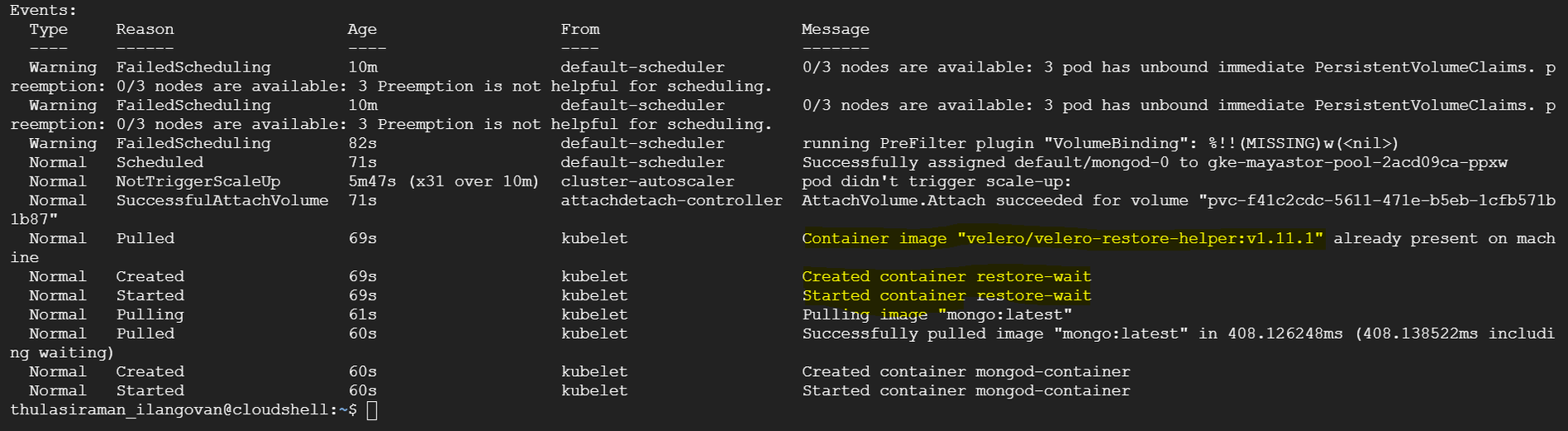
The output will display the pods' status, including the Velero initialization container. Initially, the status might show as "Init:0/1," indicating that the restore process is in progress.
You can track the progress of the restore by running:
Command
velero get restore
Output
NAME                     BACKUP                  STATUS      STARTED                         COMPLETED                       ERRORS   WARNINGS   CREATED                         SELECTOR
mongo-restore-13-09-23   mongo-backup-13-09-23   Completed   2023-09-13 13:56:19 +0000 UTC   2023-09-13 14:06:09 +0000 UTC   0        4          2023-09-13 13:56:19 +0000 UTC   <none>
You can then verify the data restoration by accessing your MongoDB instance. In the provided example, we used the "mongosh" shell to connect to the MongoDB instance and check the databases and their content. The data should reflect what was previously backed up from the cStor storage.
mongosh mongodb://admin:admin@mongod-0.mongodb-service.default.svc.cluster.local:27017
Step 8: Monitor Pod Progress
Due to the statefulset's configuration with three replicas, you will notice that the mongo-1 pod is created but remains in a Pending status. This behavior is expected as we have the storage class set to cStor in statefulset configuration.
Step 9: Capture the StatefulSet Configuration and Modify Storage Class
Capture the current configuration of the StatefulSet for MongoDB by running the following command:
kubectl get sts mongod -o yaml > sts-mongo-original.yaml
This command will save the existing StatefulSet configuration to a file named sts-mongo-original.yaml. Next, edit this YAML file to change the storage class to mayastor-single-replica.
apiVersion: apps/v1
kind: StatefulSet
metadata:
  annotations:
    backup.velero.io/backup-volumes: mongodb-persistent-storage-claim
    meta.helm.sh/release-name: mongo
    meta.helm.sh/release-namespace: default
  generation: 1
  labels:
    app.kubernetes.io/managed-by: Helm
    velero.io/backup-name: mongo-backup-13-09-23
    velero.io/restore-name: mongo-restore-13-09-23
  name: mongod
  namespace: default
spec:
  podManagementPolicy: OrderedReady
  replicas: 3
  revisionHistoryLimit: 10
  selector:
    matchLabels:
      role: mongo
  serviceName: mongodb-service
  template:
    metadata:
      creationTimestamp: null
      labels:
        environment: test
        replicaset: rs0
        role: mongo
    spec:
      containers:
      - command:
        - mongod
        - --bind_ip
        - 0.0.0.0
        - --replSet
        - rs0
        env:
        - name: MONGO_INITDB_ROOT_USERNAME
          valueFrom:
            secretKeyRef:
              key: username
              name: secrets
        - name: MONGO_INITDB_ROOT_PASSWORD
          valueFrom:
            secretKeyRef:
              key: password
              name: secrets
        image: mongo:latest
        imagePullPolicy: Always
        lifecycle:
          postStart:
            exec:
              command:
              - /bin/sh
              - -c
              - sleep 90 ; ./tmp/scripts/script.sh  > /tmp/script-log
        name: mongod-container
        ports:
        - containerPort: 27017
          protocol: TCP
        resources: {}
        terminationMessagePath: /dev/termination-log
        terminationMessagePolicy: File
        volumeMounts:
        - mountPath: /data/db
          name: mongodb-persistent-storage-claim
        - mountPath: /tmp/scripts
          name: mongo-scripts
      dnsPolicy: ClusterFirst
      restartPolicy: Always
      schedulerName: default-scheduler
      securityContext: {}
      terminationGracePeriodSeconds: 10
      volumes:
      - configMap:
          defaultMode: 511
          name: mongo-replica
        name: mongo-scripts
  updateStrategy:
    type: RollingUpdate
  volumeClaimTemplates:
  - apiVersion: v1
    kind: PersistentVolumeClaim
    metadata:
      annotations:
        volume.beta.kubernetes.io/storage-class: mayastor-single-replica #Make the change here
      creationTimestamp: null
      name: mongodb-persistent-storage-claim
    spec:
      accessModes:
      - ReadWriteOnce
      resources:
        requests:
          storage: 3Gi
      volumeMode: Filesystem
Step 10: Delete StatefulSet (Cascade=False)
Delete the StatefulSet while preserving the pods with the following command:
kubectl delete sts mongod --cascade=false
You can run the following commands to verify the status:
kubectl get sts
kubectl get pods
kubectl get pvc
Step 11: Deleting Pending Secondary Pods and PVCs
Delete the MongoDB Pod mongod-1.
kubectl delete pod mongod-1
Delete the Persistent Volume Claim (PVC) for mongod-1.
kubectl delete pvc mongodb-persistent-storage-claim-mongod-1
Step 12: Recreate StatefulSet
Recreate the StatefulSet with the Yaml file.
Command
kubectl apply -f sts-mongo-mayastor.yaml
Output
statefulset.apps/mongod created
Command
kubectl get pods
Output
NAME                            READY   STATUS    RESTARTS   AGE
mongo-client-758ddd54cc-h2gwl   1/1     Running   0          31m
mongod-0                        1/1     Running   0          31m
mongod-1                        1/1     Running   0          7m54s
mongod-2                        1/1     Running   0          6m13s
ycsb-775fc86c4b-kj5vv           1/1     Running   0          31m
Command
kubectl mayastor get volumes
Output
ID                                    REPLICAS  TARGET-NODE                      ACCESSIBILITY  STATUS  SIZE  THIN-PROVISIONED  ALLOCATED
 f41c2cdc-5611-471e-b5eb-1cfb571b1b87  1         gke-mayastor-pool-2acd09ca-ppxw  nvmf           Online  3GiB  false             3GiB
 113882e1-c270-4c72-9c1f-d9e09bfd66ad  1         gke-mayastor-pool-2acd09ca-4v3z  nvmf           Online  3GiB  false             3GiB
 fb4d6a4f-5982-4049-977b-9ae20b8162ad  1         gke-mayastor-pool-2acd09ca-q30r  nvmf           Online  3GiB  false             3GiB
Step 13: Verify Data Replication on Secondary DB
Verify data replication on the secondary database to ensure synchronization.
root@mongod-1:/# mongosh mongodb://admin:admin@mongod-1.mongodb-service.default.svc.cluster.local:27017
Current Mongosh Log ID: 6501c744eb148521b3716af5
Connecting to:          mongodb://<credentials>@mongod-1.mongodb-service.default.svc.cluster.local:27017/?directConnection=true&appName=mongosh+1.10.6
Using MongoDB:          7.0.1
Using Mongosh:          1.10.6

For mongosh info see: https://docs.mongodb.com/mongodb-shell/

------
   The server generated these startup warnings when booting
   2023-09-13T14:19:37.984+00:00: Using the XFS filesystem is strongly recommended with the WiredTiger storage engine. See http://dochub.mongodb.org/core/prodnotes-filesystem
   2023-09-13T14:19:38.679+00:00: Access control is not enabled for the database. Read and write access to data and configuration is unrestricted
   2023-09-13T14:19:38.679+00:00: You are running this process as the root user, which is not recommended
   2023-09-13T14:19:38.679+00:00: vm.max_map_count is too low
------

rs0 [direct: secondary] test> use mydb
switched to db mydb
rs0 [direct: secondary] mydb> db.getMongo().setReadPref('secondary')

rs0 [direct: secondary] mydb> db.accounts.find()
[
  {
    _id: ObjectId("65019e2f183959fbdbd23f00"),
    name: 'john',
    total: '1058'
  },
  {
    _id: ObjectId("65019e2f183959fbdbd23f01"),
    name: 'jane',
    total: '6283'
  },
  {
    _id: ObjectId("65019e31183959fbdbd23f02"),
    name: 'james',
    total: '472'
  }
]
rs0 [direct: secondary] mydb>